Categories
Hardware Ubuntu

Find BIOS version using Ubuntu

I found this really simple way of finding the installed BIOS version on an Ubuntu PC without having to reboot. Simply execute the following command in a terminal session and scroll through the output until you find the BIOS section.

sudo dmidecode -s bios-version

For more system information, just scroll through the output until you find what you need.

sudo dmidecode | more

Update August 2012
I have successfully installed Lubuntu 10.04 on an old Toshiba Tecra 8000 (Pentium Mobile 233 with 256MB of RAM) and found that this trick to find the BIOS version did not work. The BIOS in my old Tecra is older than 1999 and doesn’t have the Desktop Management Interface present.

Categories
Security Ubuntu

Ubuntu 10.10 SSH login message fix

Do you get two welcome messages when logging in to your Ubuntu 10.10 host? I have experienced it on hosts upgraded from 10.04 and on freshly built hosts from the downloaded CD-ROM images. The problem can be easily fixed using…

sudo rm /etc/motd.tail

If you are still using password based login for SSH, consider using key based logins instead. It is very easy to set up, convenient to use and secure. If you also use PuTTY on a Windows PC you can use Pageant as the automatic authentication agent.

Categories
Security Ubuntu

Securing the list of last logged in users

The command ‘last‘ lists the times and dates of successful logins. The command ‘lastb‘ lists unsuccessful attempts. I found that both unnecessarily had public read access on most of my Ubuntu servers.

Two log files provide the data used by last and lastb. Both can be secured by changing the permission to 660.

sudo ls -l /var/log/?tmp
sudo chmod 660 /var/log/?tmp
sudo ls -l /var/log/?tmp

Afterwards, to list successful logins, use:-

sudo last

To list unsuccessful logins, use:-

sudo lastb

Categories
Security Ubuntu

Restricting access to ftpd

Whether the ftp daemon is in use or not on a Linux host, it’s a good idea to restrict the system user accounts from using it. Any user ID that is in /etc/passwd that is not permitted to use ftp should be copied to /etc/ftpusers. The following commands for Ubuntu create the file with a list of all users.

sudo awk -F”:” ‘{ print $1 }’ /etc/passwd | sort > ~/ftpusers

Edit the resulting ~/ftpusers to remove the IDs that are allowed to use ftp.

sudo nano ~/ftpusers

Then move the file from your home directory to /etc.

sudo mv ~/ftpusers /etc

Categories
Ubuntu

Wireshark missing interfaces on Ubuntu 10.10

The old Dell laptop that I use for packet sniffing was in need of a rebuild after I had been experimenting with Zabbix. In hindsight, I shouldn’t have used the laptop that has become my network toolkit. I had well and truly messed it up and I was desperate to get it operational again.

Ubuntu 10.10 had recently been released and I had already downloaded the ISO images overnight. With a freshly burned CDR in my hand, I set about installing the new version. This laptop is primarily a network analysis tool so Wireshark was naturally the first application to be installed. It wasn’t long before I found that 10.10 has the same missing interface problem that I had experienced with 10.04. “No problem” I thought. “I will just use the fix that I found for 10.04“. Well, that didn’t work either. I left it for a day to have a think, and came back to it with a solution that I found on Launchpad. The fix is as follows.
In a terminal session, execute these commands:-

sudo addgroup –quiet –system wireshark
sudo chown root:wireshark /usr/bin/dumpcap
sudo setcap cap_net_raw,cap_net_admin=eip /usr/bin/dumpcap

Using your favourite text editor, add your user id to the wireshark group in /etc/group or use usermod instead:-

sudo usermod -a -G wireshark vince

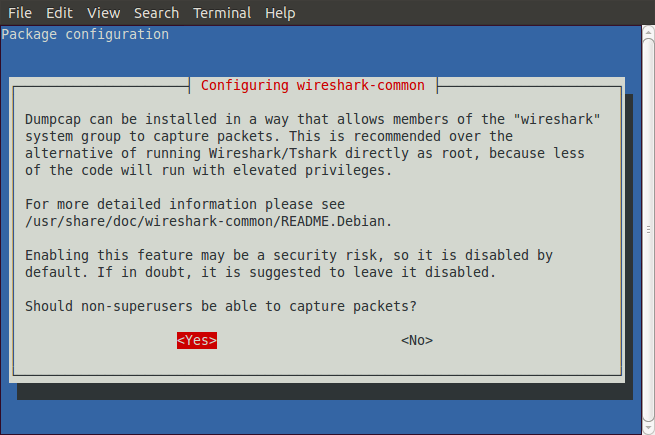
Reconfigure the Wireshark Common package and answer ‘Yes’ to the question ‘Should non-superusers be able to capture packets?’ :-

sudo dpkg-reconfigure wireshark-common

Reboot, login and test Wireshark. The missing interfaces should be present now.

Categories
Internet Ubuntu

Scheduling automatic updates to save money

I had an unlimited download account with my previous Internet Service Provider and I never worried about what time of day I would download a CD-ROM ISO or system update. However, since changing to PlusNet I am now on a 60GB per month download limit as unlimited accounts are now a thing of the past. Now 60GB may seem a generous allowance, but in reality upload traffic also has to come of the allowance. With everyone in my household being a heavy internet user, 60GB a month is often not enough.

Fortunately for PlusNet customers, any internet use after midnight and before 8am does not come out of their monthly allowance. So to take advantage of this overnight benefit I have been adjusting the times that our computers perform their automated updates.

For all of our Microsoft Windows machines this is easily done in Windows update. Just set the time that updates should commence. In my case, I have set our fastest Windows PC to update at 7:05am, and all the others at 7:10am. My Son’s PC is woken up at 7:00am by it’s system BIOS and the updates it pulls down are cached on my Squid Proxy Server. The other Windows PCs collect their updates when they are switched on and most of the files are served from the proxy cache.

For all my Ubuntu hosts I have disabled the built-in automatic update feature and I use a CRON job that I can control instead. To do this, open a terminal session and run the CRONtab editor with the following command:-

sudo crontab -e

When the editor launches, paste the following line into the file and save your work. That’s it.

5 0 * * * (/usr/bin/aptitude -y update && /usr/bin/aptitude -y safe-upgrade) 2>&1 >> /var/log/automatic-update.log

Cron will perform a safe upgrade at 5 minutes past midnight. As I am using a Squid proxy to cache Ubuntu updates, I set my other machines to start their update 5 minutes later by changing the ‘5’ for ’10’ in the crontab line.

For a more detailed explanation of how this crontab command is constructed visit Kevin van Zonneveld’s blog

Want to save money on your broadband? Quick, grab this lifeline from PlusNet. Up to 20Mb broadband from only£9.99 per month. Free setup available - terms apply. Now with Internet phone calls. PlusNet broadband.
Categories
Ubuntu

Wireshark missing interfaces on Ubuntu 10.04

I have been using Wireshark for some time on my Vista laptop but I couldn’t get it to work on my smaller Ubuntu laptop. When an update was installed today for Wireshark on my Windows machine I decided that now was the time to fix the problem on my old Ubuntu laptop.

It was a simple fix that was documented in the wiki. All I had to do was run this command to have WireShark detect the interfaces.

sudo setcap ‘CAP_NET_RAW+eip CAP_NET_ADMIN+eip’ /usr/bin/dumpcap

Categories
Linux Ubuntu

Compiling cURL with SSL on Ubuntu 10.04

I was having problems compiling the latest source of cURL on a freshly installed Ubuntu 10.04 host. The ./configure for cURL refused to find OpenSSL despite it being installed. After reading the cURL FAQ I checked to see if I had libssl installed on my machine and I found that it wasn’t there. The library is not part of the main package but it is in the development package. I installed libssl using:-

sudo apt-get install libssl-dev

Then I rerun the ./configure for cURL with the SSL option

./configure –with-ssl

Success confirmed by the output on screen.

curl version:    7.21.0
Host setup:      i686-pc-linux-gnu
Install prefix:  /usr/local
Compiler:        gcc
SSL support:     enabled (OpenSSL)
SSH support:     no      (--with-libssh2)
zlib support:    enabled
...
Categories
Linux MythTV

MythWeb in the DMZ

These instructions have been written specifically for installing MythWeb on an Ubuntu 9.10 host.

Preparation

Build an Apache2 web host in the DMZ and setup password login using .htaccess in the web server’s document root.

Use individual user ID’s and a group called ‘authorised-users’ to control access to the server. See htpasswd.

Configure port forwarding on your firewall to forward port 8090 aimed at the public interface to port 80 on the DMZ web server’s interface. To access the web page, point the browser at http://mythweb.dyndns.local:8090/

Test that the security works from a friend’s computer with internet access.

Installation

The default installation for MythWeb is directly on the MythTV host backend. There is no easy installation option for installing MythWeb on another host. However, it is possible to checkout MythWeb individually from SVN and install manually which is the approach I am taking.

Install Subversion if not already installed.

sudo apt-get install subversion

From the web document root, checkout MythWeb from SVN

cd /var/www
sudo svn co http://svn.mythtv.org/svn/branches/release-0-22-fixes/mythplugins/mythweb

This will create a subdirectory /var/www/mythweb containing the MythWeb software.

File System Permissions

Determine the user currently running Apache as this information will be required to set access to the MythWeb data.

ps aux | grep -i apache | awk ‘{ print $1 }’

This should display a list of user ID’s running Apache.


root
www-data
www-data
www-data
www-data
www-data
www-data
www-data
www-data
www-data
vince

The most frequently occurring ID is the one to use. So, www-data is the user running Apache on my system.

sudo chgrp -R www-data /var/www/mythweb/data
sudo chmod g+rw /var/www/mythweb/data

Create a subdirectory to hold TV Channel icons instead of storing them in User’s home directories.

sudo mkdir /var/www/mythweb/data/tv_icons
sudo chown www-data:www-data /var/www/mythweb/data/tv_icons

Required Apache Modules

Ensure the required Apache modules are installed by executing the following:-

sudo a2enmod rewrite
sudo a2enmod deflate
sudo a2enmod headers
sudo a2enmod auth_digest
sudo /etc/init.d/apache2 restart

Configuring Apache for MythWeb

Copy the sample Apache configuration file to the additional configuration directory ‘sites-available’.

sudo cp /var/www/mythweb/mythweb.conf.apache /etc/apache2/sites-available/mythweb.conf

Edit the file using your favourite text editor and make the following changes.


# If you intend to use authentication for MythWeb (see below), you will
# probably also want to uncomment the following rules, which disable
# authentication for MythWeb's download URLs so you can properly stream
# to media players that don't work with authenticated servers.
#
<LocationMatch .*/pl/stream/[0-9]+/[0-9]+>
Allow from all
</LocationMatch>
#
<LocationMatch .*/music/stream.php>
Allow from all
</LocationMatch>

Change the paths for the MythWeb directories in the following section:-

#
# CHANGE THESE PATHS TO MATCH YOUR MYTHWEB INSTALLATION DIRECTORY!  e.g.
#
#    /var/www
#    /home/www/htdocs
#    /var/www/html/mythweb
#    /srv/www/htdocs/mythweb
#
<Directory "/var/www/mythweb/data">
Options -All +FollowSymLinks +IncludesNoExec
</Directory>
<Directory "/var/www/mythweb" >

Configure authentication using htdigest, check how this works or not with .htaccess method and update the preparation stage accordingly

############################################################################
# I *strongly* urge you to turn on authentication for MythWeb.  It is disabled
# by default because it requires you to set up your own password file.  Please
# see the man page for htdigest and then configure the following four directives
# to suit your authentication needs.
#
AuthType           Digest
AuthName           "MythTV"
AuthUserFile       /var/www/htdigest
Require            valid-user
BrowserMatch       "MSIE"      AuthDigestEnableQueryStringHack=On
Order              allow,deny
Satisfy            any
#

Change the value for db_server from ‘localhost’ to the hostname of the MythTV Backend with the MySQL database. Ensure that the MythWeb host can resolve the hostname that you use. Edit /etc/hosts to include a valid entry for the backend if it can’t.

#
# Use the following environment settings to tell MythWeb where you want it to
# look to connect to the database, the name of the database to connect to, and
# the authentication info to use to connect.  The defaults will usually work
# fine unless you've changed mythtv's mysql.txt file, or are running MythWeb on
# a different server from your main backend.  Make sure you have mod_env enabled.
#
setenv db_server        "pc204"
setenv db_name          "mythconverg"
setenv db_login         "mythtv"
setenv db_password      "mythtv"

Change the email address to receive error alerts on to one that you currently use.

# If you want MythWeb to email php/database errors (and a backtrace) to you,
# uncomment and set the email address below.
#
#   setenv error_email       “alerts@vlara.co.uk
#

Enable mod_deflate

# Enable mod_deflate.  This works MUCH more reliably than PHP's built-in
# gzip/Zlib compressors.  It is disabled here because many distros seem not
# to enable mod_deflate by default, but I strongly recommend that you
# enable this section.
#
BrowserMatch ^Mozilla/4 gzip-only-text/html
BrowserMatch ^Mozilla/4\.0[678] no-gzip
BrowserMatch \bMSIE !no-gzip !gzip-only-text/html
#
AddOutputFilterByType DEFLATE text/html
AddOutputFilterByType DEFLATE text/css
AddOutputFilterByType DEFLATE application/x-javascript
#
# This is helpful for mod_deflate -- it prevents proxies from changing
# the user agent to/from this server, which can prevent compression from
# being enabled.  It is disabled here because many distros seem not to
# enable mod_headers by default, but I recommend that you enable it.
#
Header append Vary User-Agent env=!dont-vary

Activate the configuration changes by executing the following commands:-

sudo a2ensite mythweb.conf
sudo /etc/init.d/apache2 reload

Network Access To MySQL from the DMZ

The MythWeb host in the DMZ will not have direct access to MySQL on the MythTV backend. The firewall will be blocking communication from the DMZ to the inside network. You need to open up ‘pin holes’ in the firewall to permit access from MythWeb to MythTV on ports 3306, 6543 and 6544. I created rules for TCP and UDP until I can test which are required. I suspect only TCP is required.

MySQL on the MythTV backend also needs to be reconfigured to allow access from remote hosts. Edit the file /etc/mysql/my.cnf and change the bind_address from 127.0.0.1 to the IP address of the MythTV host.

Testing MythWeb

Playing Flash Videos from the ‘Recorded Programs’ results in an error ‘Netstream not found’ this is most likely due to a problem with the firewall blocking the traffic between the browser and the server. Fortunately, Adobe have a very handy web page that tests the connection capability with their Flash Media Server that can be used to help diagnose the problem.

Create a firewall rule to allow port 1935 (macromedia-fcs) Real Time Messaging Protocol (RTMP) between MythWeb and MythTV.

A work in progress…
Categories
Hardware Nagios

Monitoring a Linksys WAG200G using SNMP

I have been using a Linksys WAG200G as a wireless access point since December 2007. I’m not using it for my broadband connection as I have a separate firewall and router already on my network. It has been running reliably without any problems since installed and it occurred to me that it had been some time since I had used the device’s administration page or reviewed Cisco’s patch history for it.

Using the web interface, the installed firmware was shown to be version 1.0.9, which was some way behind the current 1.1.9 release. I couldn’t find the release notes for any versions prior to 1.1.5 so I decided to upgrade the firmware to be certain that any known vulnerabilities had been patched.

After exploring the device’s web interface, I remembered that the little router supported SNMP. I didn’t have a NMS when it was installed so I had left this feature unconfigured. Now that I have a Nagios console it was time to activate the SNMP management. I set the device name to the same name that it’s IP resolves to in my DNS (wap101). I then set the monitoring IP address and trap target address to that of my NMS. Finally, I set the read community to public, and the write community to private.

From a command prompt on my NMS, I dumped a list of the management functions supported by the WAG200G using this command…

snmpwalk -v1 -c public 192.168.1.30 -m ALL .1

My Linksys uses 192.168.1.30 for it’s Ethernet interface. Change it to your device’s IP address if you are going to try it yourself. Redirecting the output to a file is useful for future reference.

A sample output of snmpwalk looks like this

IF-MIB::ifInErrors.1 = Counter32: 0
IF-MIB::ifInErrors.2 = Counter32: 0
IF-MIB::ifInErrors.3 = Counter32: 0
IF-MIB::ifInErrors.4 = Counter32: 0
IF-MIB::ifInErrors.5 = Counter32: 0

My WAG200G is only used as a WLAN access point, so I apologise now for not covering anything to do with monitoring ADSL or anything other than the Ethernet and WLAN interfaces in the Host and Service Definition file for my WAG200G. If you want to monitor more, just pick the relevant items required from the MIBs reported by snmpwalk and add them to your Nagios services. Think about the outputs and what conditions they need for alerts if any. Most of mine only need to alert if the result increases from zero. This is the list of services I am only interested in monitoring:-

  • PING
  • Uptime
  • eth0 IN Discarded Packets
  • eth0 IN Errors
  • eth0 IN Unknown Protocols
  • eth0 OUT Discarded Packets
  • eth0 OUT Errors
  • eth0 Operational Status
  • wlan0 IN Discarded Packets
  • wlan0 IN Errors
  • wlan0 IN Unknown Protocols
  • wlan0 OUT Discarded Packets
  • wlan0 OUT Errors
  • wlan0 Operational Status

I found that Nagios doesn’t like non-unique service descriptions, which is why my descriptions take the form shown above. Click here to view my Host and Services Definitions for the WAG200G.

The host definition inherits from the generic-switch template and looks like this…

# Define the switch that we'll be monitoring
define host{
use generic-switch ; Inherit default values from a template
host_name wap101 ; The name we're giving to this switch
alias Linksys WAG200G ; A longer name associated with the switch
address 192.168.1.30 ; IP address of the switch
hostgroups switches ; Host groups this switch is associated with
}

Each service inherits from the generic-service template and looks something like this…

# Monitor Port 4 (wlan0) number of errors in via SNMP
define service{
use generic-service ; Inherit values from a template
host_name wap101
service_description wlan0 IN Errors
check_command check_snmp!-C public -o ifInErrors.4 -c 0 -m IF-MIB
}

I used the documentation on check_snmp to prevent critical warnings for zero values (-c 0). In time, if any of my services start seeing errors I can change them to use a warning range and a critical range instead.

My Ubuntu 9.10 package install of Nagios was missing the command snmp_check. I added the following code to the bottom of my /etc/nagios-plugins/config/snmp.cfg to get SNMP working as the vital command was missing for some reason.

define command{
command_name check_snmp
command_line $USER1$/check_snmp -H $HOSTADDRESS$ $ARG1$
}
