Categories
Hardware

HTTPS on FOXSAT-HDR Custom Firmware

Using an Ubuntu PC
FOXSAT-HDR with Custom Firmware v4.1.1
Dropbear SSH

Open a terminal on Ubuntu

ssh root@foxsat-hdr
cd /opt/etc
mkdir ./ssl
mkdir ./ssl/certs

Open another terminal on Ubuntu

cd
sudo /usr/sbin/make-ssl-cert /usr/share/ssl-cert/ssleay.cnf ./foxsat-hdr.pem

When prompted for the hostname, change localhost to foxsat-hdr

Copy the self signed certificate that has just been created to the FOXSAT-HDR

sudo scp ./foxsat-hdr.pem root@foxsat-hdr:/opt/etc/ssl/certs/

You can delete the certificate from your home directory when you are happy a copy is on the FOXSAT-HDR.
Close this terminal and return to the other terminal with the SSH session.

cd /opt/etc
vi mongoose.conf

Change

listening_ports 80,777 

to

listening_ports 80,443s

You can retain 777 if you are using it, but make sure you have 443s. You can also change 80 to 80r to force http redirection to https but it is best not to do that until you can prove https is working first.

Add the configuration line for the SSL certificate

ssl_certificate /opt/etc/ssl/certs/foxsat-hdr.pem

Save the file and quit vi.

DOES NOT WORK. NO SSL ON THE BOX!

Categories
FreeBSD Hardware Linux ZFS

Fixing ZREPL after restoring a filesystem

ZREPL is a great tool for creating snapshots of your ZFS filesystems and then copying them to a remote ZFS storage server. I have been using ZREPL for some time and I recently relied upon it to restore filesystems. However, the experience revealed some gotchas.

The first time I had to rollback a filesystem from a local snapshot I found ZREPL didn’t want to continue replicating that host afterwards. I got into a mess with ZREPL’s ZFS holds and bookmarks and I ended up deleting all the snapshots on both sides of the replication, losing historical data that I wanted to keep.

A few weeks later I had to use a remote ZREPL snapshot to restore a laptop that needed a new hard drive. The restoration was successful, but getting ZREPL to continue replicating this machine was not. I manually trawled through the ZFS holds and bookmarks, clearing them as needed. I lost a few historical snapshots that I wanted to keep in the process and thought that there must be a better way. Using ZREPL after recoveries was proving to be less than ideal. I have found that better way and it is so simple that you will remember it.

Yesterday, I had to do another recovery. This time on a experimental server that I really should never have built using old SATA hard drives. The zpool had three drives in the pool, two mirrored and an online spare. When one of the mirrored drives failed, ZFS successfully resilvered to the spare. Before I had an opportunity to replace the failed drive, the other mirrored drive failed. It ran OK for a while on parity, but when I shut the machine down to replace the original failed drive, the server would not boot.

As I had hourly ZREPL replicas stored remotely and three more old replacement drives available, I was confident that this problem would not be a disaster. I replaced all three drives, reinstalled the OS and used ZFS send/recv to restore the filesystems from my remote ZREPL replica. The experimental server was operational, but ZREPL was no longer creating remote replicas as it should.

The following describes a simple method that I now use to do a full zpool restore. It is equally relevant if you have to restore an individual filesystem that has been replicated remotely by ZREPL either by rolling back a local snapshot or sending from a remote replica.

How To Restore Using ZREPL

Example Scenario

jewel.example.com
This is the host that needs a filesystem restoration. Hostname abbreviated to ‘jewel’.

zroot
This is the ZFS pool on ‘jewel’ that has a Root on ZFS filesystem containing the important data that must be restored.

safe.example.com
This is the ZREPL storage server. Hostname abbreviated to ‘safe’.

zdata
This is the ZFS pool on ‘safe’ that contains the ZFS snapshots that were replicated remotely by ZREPL.

Tip 1:

Always have a bootable recovery image available. It can be a USB datastick, a live CD or PXE boot disk. It should have the same OS (and version) as the system to be recovered. It must contain all of the necessary ZFS components so that you can import your ZFS pool without mounting the file systems. This enables you to restore a ZFS on Root system. Remember to update this recovery boot image whenever you upgrade the OS or ZFS features.

Tip 2:

Use a script that is run from Cron or Periodic to regularly create a text file report about your ZFS filesystems and their mountpoints. If you have access to a private git repository, have the script ‘add, commit and push’ the report to the repository. If you don’t have a private git repo, have the machine email you the reports instead. You will be thankful that you have the mountpoint information when you most need it!

After a fresh operating system install and the recreation of the zpool(s) required (You had that info kept safe in your private git repo), boot the host using the recovery disk image.

Establish that you can ssh as root between the remote ZREPL storage and the host to be recovered using passwordless certificate login. Get this proven to run in both directions first before doing anything else. If you are preparing your recovery image, consider using a hardware token authenticator like a Yubikey to store the private keys which is safer than leaving private keys for root on a bootable USB stick!

Login as root on jewel.example.com to import the empty ZFS pool that you have recently created as part of the OS install. The -f option is required to import a pool that has been previously mounted by another system.

root@jewel$

zpool import -f zroot

Login as root on safe.example.com to identify the snapshot(s) that you wish to restore

root@safe$

zfs list -t snapshot -H -o name \
| grep jewel.example.com \
| grep 20260212_11 

-t snapshot : Lists only snapshots
-H : Strips the headers from the output
-o name : Includes only the snapshot names in the output
grep jewel.example.com : Reduces the output to reference only the machine of interest
grep 20260212_11 : Reduces the output to snapshots taken on 12 February 2026 in the hour of 11am

Select the latest snapshot that you know will contain everything that you want to restore. This will be one that completed successfully before the disaster.  Use ZFS Send/Recv over SSH to restore the filesystem.

root@safe$

zfs send -r zdata/zrepl/jewel.example.com/zroot@zrepl_20260212_1132_000 \
| pv \
| ssh root@jewel.example.com "zfs recv -Fu zroot"

Piping through ‘pv’ is optional. It shows progress of the data transfer, otherwise you just have to wait for the prompt to return on your terminal to know that it has finished.

If you cannot or do not want to perform a recursive restore as shown above, omit the -r option and send filesystems individually.

When the filesystem restoration has completed, shutdown the restored host and remove the USB live image recovery datastick.

root@jewel$

poweroff

Boot the restored host and check that all is OK and as expected.

Temporarily stop the ZREPL service at the end that drives the replica transfer. If ‘jewel’ is configured to push replicas to ‘safe’, stop ZREPL on jewel. Otherwise, stop ZREPL on safe.

The simple action that prevents ZREPL problems

Login as root on safe.example.com, now rename the dataset holding the replicas for jewel
root@safe$

zfs rename zdata/zrepl/jewel.example.com/zroot \
zdata/zrepl/jewel-20260212/zroot

All of that dataset’s snapshots will automatically be renamed to correspond with the new name of their parent.

Restart ZREPL and manually wake up a replication. The process will automatically create a new dataset called zdata/zrepl/jewel.example.com/zroot . This will allow ZREPL to continue to operate as normal, effectively starting afresh.

All of your historical snapshots for jewel will now be in zdata/zrepl/jewel-20260212/zroot and its descendants. These will not be pruned automatically. You can still use them for restores, but they are now outside of ZREPL.

If you want to recover disk space, delete the snapshots that you no longer need from zdata/zrepl/jewel-20260212/zroot.

Re-enable and restart ZREPL and you should find that replication is back to normal.
Categories
Hardware

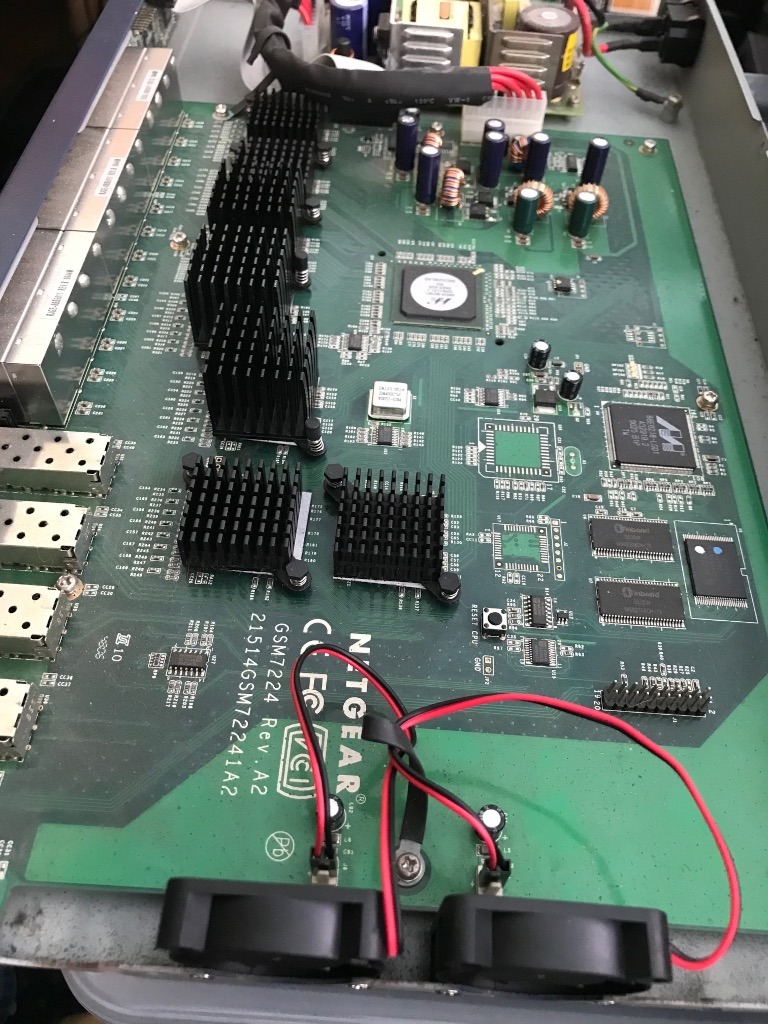
Replacement fans for GSM7224 switches

I have three old Netgear GSM 7224 Ethernet switches that I use from time to time in my lab network. These switches run at 1Gbps on each port which is still plenty fast enough for my needs.

I purchased them second hand on eBay some years ago. Soon after my acquisition, I replaced the 40mm fans in two of them and upgraded the firmware. All of my GSM7224 switches now needed new fans. One had stopped altogether, while the others had become very noisy.

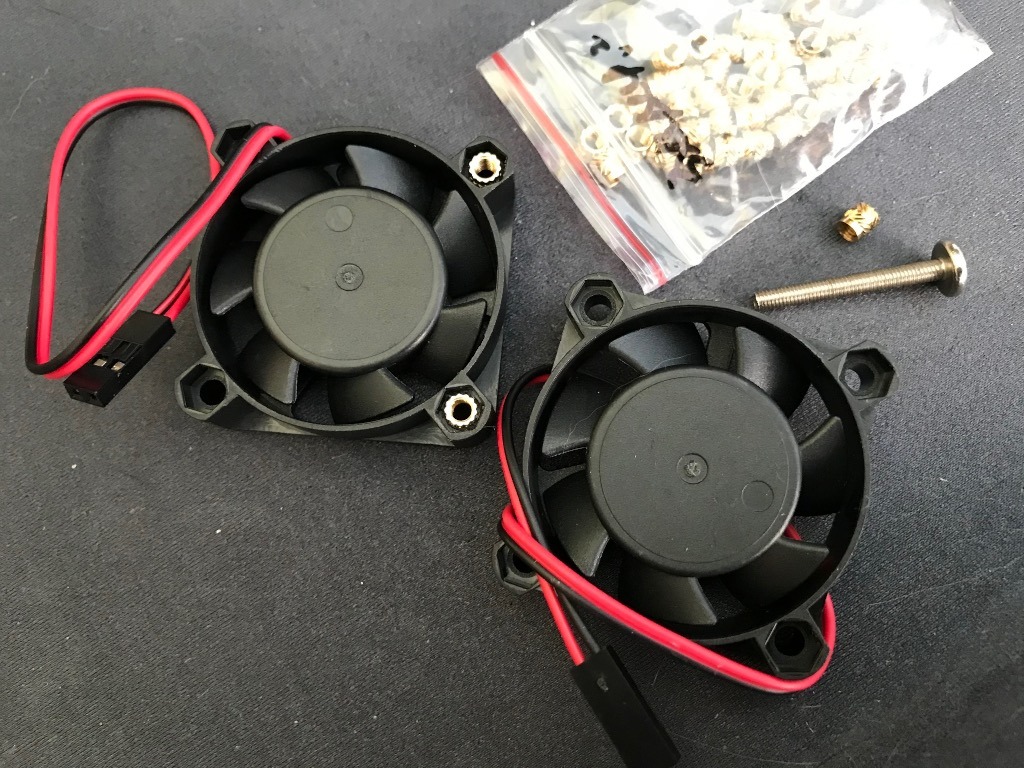
Having done this repair before, this time around, I carefully selected replacement fans with the correct 2-pin plug already installed. I had to cut the plugs off the old fans last time and soldered them to the replacements. Lesson learned. With the new fans I could have glued M3 nuts into the receptacles but I prefer to use brass inserts like the OEM fans for ease of installation and avoid the glue.

Brass inserts for replacement fans

Six economically priced 5Vdc 40x40x10mm fans were purchased on eBay for £2.85 each, plus a bag of 50 M3 brass inserts for £2.19. The total cost of this repair was £19.29 in October 2024.

So why did I buy no name fans? A single Noctua fan costs £20, six of them would have set me back £120. I couldn’t justify spending an extra £100 on repairing these old switches. I would have to repair them five more times with cheap fans before breaking even on the cost of Noctua fans. If the switches were going to be used in a 24×7 production network, then better quality fans would make more sense. These switches are for a development lab and only powered on when needed.

Modification

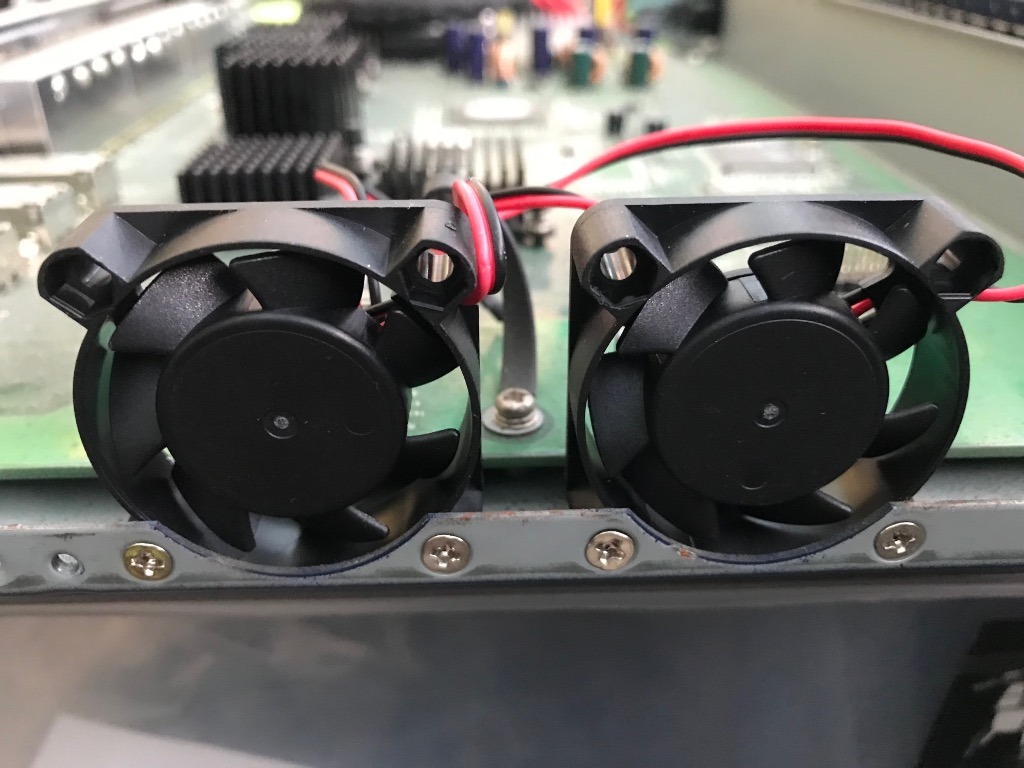
I compared the fans on the switch that still had it’s original fans to those that I had repaired previously. All of the fans were installed the same way, sucking air out of the case. I have always been doubtful of the manufacturer’s choice to install them this way, so I decided to install the replacement fans blowing air onto the heatsinks instead. I am hoping that this will keep the case temperatures lower and make the fans last longer.

The heatsinks are in the air flow of the fans

The new fans have all been installed and are still quiet. Only time will tell if I should have bought Noctua fans. So far, I am happy with my cheap repair.

Replacement fans installed

A Future Project

The next project for these switches is to replace the awful configuration web app and equally awful text mode configuration. The older FSM726 switch had an easy to use terminal interface for setup. I still have a couple of them and it is far quicker to set one of these up over a serial terminal.

I am considering setting up a bastion host with SSH2 access over Ethernet and RS232C serial to the switch console port. I could create my own text mode interface that mimics the FSM726 which runs the appropriate sequence of commands on the switch to make the required changes. Alternatively, this could be a web app or an Ansible module. My Ansible controller could become the bastion host with the addition of a few more serial ports.

Update September 2025

All of my Netgear 7224 switches were scrapped this summer and replaced with Netgear GS108Tv2 switches.

The 7224 switches had been setup on a bench for a project one evening, but I couldn’t get back to completing it for some time. What I had not realised was that they were in direct sunlight on the hottest days of the year and in a room with the windows and doors shut.

When I got back to the project I was having a lot of weird problems in data transmission, including using the serial interfaces. Slipping the cases off revealed that almost all of the electrolytic capacitors were showing signs of failure with the tops bulging. As newer switches use a lot less power, I decided to buy some used GS108Tv2 switches to replace them instead of replacing the capacitors in the 7224s.

I stripped out the new fans, separated the PCBs from the cases and dropped the parts off at our local recycling. Sometimes you just have to let go of old kit.

Categories
FreeBSD Hardware

1024×768 FreeBSD VT Console

I use of a lot of old kit in my lab. Some of these machines have very poor ACPI implementations and they often complete their boot displaying an 80×25 character console on monitors that can support much higher resolutions. I have put up with staggered ZFS listings for too long and decided to fix this problem on my FreeBSD hosts.

Modern FreeBSD uses the VT console by default. If a video graphics driver has been installed, it will display a console in a higher resolution if configured.

The configuration below was tested on FreeBSD 13.4-RELEASE-p1 and FreeBSD 14.1-RELEASE-p5 with onboard intel graphics adapter.

Install the graphics driver:

sudo pkg install drm-kmod

Run the following command to load the intel graphics driver on boot:

sysrc kld_list+=i915kms

Edit /boot/loader.conf adding the following lines to the file:

# VT console
hw.vga.textmode=1
hw.vga.acpi_ignore_no_vga=1
kern.vty=vt
kern.vt.fb.default_mode="1024x768"

If dmesg reports a good ACPI table, you don’t need to use hw.vga.acpi_ignore_no_vga=1 .

If you are using a screen that cannot display 1024×768, use kern.vt.fb.default_mode=”800×600″ instead.

Reboot the host to see the new console settings are active.

Categories
FreeBSD Hardware

USB Serial Adapter on FreeBSD

To make a USB serial adapter visible to FreeBSD, add the following to /boot/loader.conf

# USB serial adapter
ucom_load="YES"


Categories
Hardware

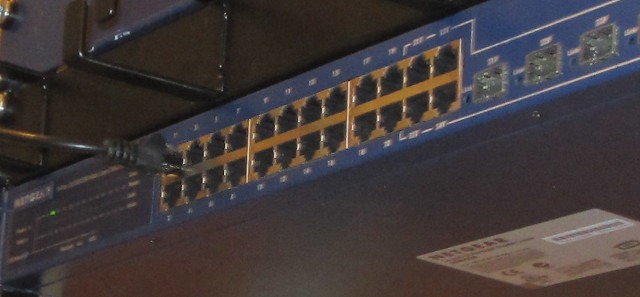
Netgear GSM7224 v1

Originally written in 2018. This post was languishing in drafts for a couple of years. I may complete it someday.

I acquired three old Netgear GSM7224 switches for my lab network some time ago and I pulled them off the shelf recently to use in a project I am currently working on. I wish I had actually checked them out fully when I first acquired them because it has cost me a week or so in time to get them useable in a reasonably secure test network. I did not anticipate the problems getting older high-end Netgear products to work securely in a network environment with up to date patched hosts.

Netgear GSM7224 Ethernet Switch
Netgear GSM7224 installed in test lab

If you are trying to make use of ageing Netgear GSM7224 Gigabit Ethernet Managed Switches you may find this article useful. Some of this may even be relevant to other network equipment running similar firmware Eg. Sun Netra.

Observations

I spent a little time getting familiar with one of the switches on my bench. I used a laptop running Ubuntu 18.04 with a USB Serial adapter and a 9-pin null modem serial cable connected to the switch’s console port on the front panel. As these were second hand switches I didn’t have knowledge of the existing admin password. Resetting the password was at the top of the task list but until then it was time to do some basic surveilance on the switch using nmap. These are my initial observations.

  • Noisy or failed fans
  • Slow start-up time
  • Old firmware. The latest 2007 version is still available for download
  • Log files are time and dated from 1 Jan 1970 at start-up
  • Awful Netgear documentation, lots of critical configuration information undocumented
  • Telnet running on tcp 23
  • No SSH v2 access
  • Unencrypted web management interface on tcp 80
  • No HTTPS for web interface
  • Mysterious tcp 4242 port listening
  • Web Management prompts for Java plugin but 2018 browsers are not able to run Java applets

Objectives

  1. Reset passwords on all switch login accounts
  2. Replace fans with new parts
  3. Document out of band command line management via the serial console
  4. Upgrade firmware to latest version
  5. Fix the time stamps in the log files
  6. Fix the Java plugin requirement
  7. Configure in-band management only from the management VLAN 1 with no internet access
  8. Enable SSH v1 safely via a bastion host running SSH v2
  9. Enable HTTPS web interface only over management VLAN
  10. Disable less secure management interfaces, telnet and unencrypted web management
  11. Enable remote syslog
  12. Enable SNMP

Tools and Equipment Required

  • Netgear GSM7224
  • The latest firmware for the switch. At the time of writing this was 6.2.0.14
  • Laptop or desktop computer that has a terminal emulator.
  • Oracle VirtualBox to host an old distro that has an SSH v1 client or a Windows PC with PuTTY.
  • CD-ROM or ISO image file for an old 32-bit Linux or FreeBSD distribution that was released between 2006 and 2007. This is primarily for using OpenSSL and OpenSSH from this period to fully configure the switch. I used Ubuntu 6.06 LTS x86 as this was still downloadable in 2018
  • 9-pin serial null modem cable.
  • USB to Serial adapter if your computer does not have a native serial port.
  • VT100 terminal emulation program that can connect to the switch’s console session via your serial connection. I used Minicom that was installable from the Ubuntu repos.
  • Netgear GSM7224 Administrators Guide
  • Netgear GSM7224 Command Line Reference
  • nmap or zenmap (GUI version) for testing

Optional Requirements

  • A compatible Java Plugin for a web browser that shipped with your 2006 Linux distro. If you want to try the Java applet function in the switch’s web interface
  • Wireshark if you want or need to decode further the SSH protocol between your switch and ssh clients

Replace the Noisy Fans

All three of my switches had noisy fans. Each has two 40x40x10mm 5VDC 2-pin fans inside and one in each had partially seized which was causing a lot of noise.

Opening the case was just a bit of screwdriver work to remove the rack mounting ears and then the screws holding the case together. All of the externally visible screws have to be removed to open the case. The cover slides off rearwards with a slight upward tilt. Once inside I could see the fans that need replacing.

I opted for cheap replacement fans sourced from eBay but I probably should have put more thought into that decision at the time. Within a few months the replacement fans started getting noisy.

I wish I had documented the fan replacement fully as I am going to use one of these switches again in November 2024. I originally installed brass inserts into the plastic housings of the 40mm fans to enable them to attached with screws to the chassis. I am guessing that the inserts are M3 thread and approximately 4mm deep. I have ordered some more for another set of new fans.

Gain Console Access

I connected a 9-pin null modem serial cable that I use for console access to the switch and to a USB serial adapter plugged into my laptop.

I use Minicom as a terminal emulator to access my switch consoles. Ctrl-A in Minicom gains access to its configuration menu. The connection was configured for /dev/ttyUSB0 at 9600,n,8,1. After saving the settings the switch console login prompt appeared.

My Netgear switches were all purchased used without documentation or being reset to factory defaults. I tried logging in as admin with various popular passwords without luck. Fortunately, rebooting the switches with Minicom still connected and running reveals a boot menu. Select option 2 to access a configuration menu. From here the switch can be reset to factory defaults without needing a password.

Update Firmware

I downloaded the ‘latest’ firmware from Netgear and setup a TFTP server on my laptop to serve the new firmware image. The firmware’s README describes the process to upgrade and although it takes a while silently updating there is eventually some confirmation on screen and the job is done.

I was having problem getting the SNTP client to synchronise time with the NTP servers that I had specified to use. That was until I tried this configuration command that worked…

(GSM7224) (config)# sntp client mode unicast

I also had some problems getting recent SSH clients to work. PuTTY on a Windows machine was useful as is still support SSH v1.

Port scanning the switch revealed that tcp 4242 appears to be used by the switch’s Java client interface. As I am not using the Java client it can be closed using:

no ip http java

More to follow…

Categories
Hardware

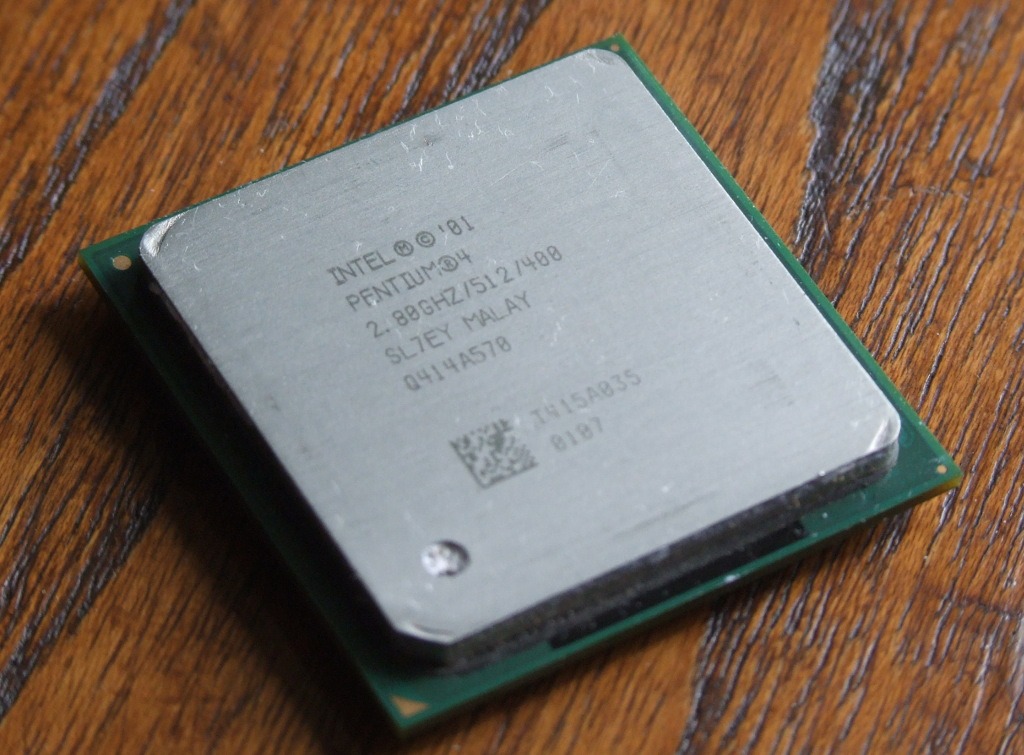
Upgrading the CPU on a Dell GX240 – Again!

SL7EY-Closeup2
I never expected that I would upgrade one of my elderly Dell GX240 PCs again, but today I did. I have two GX240 tower PCs. One of them has been used as a firewall for five years, the other as it’s fallback spare. I retired both of them a few weeks ago, replacing them with Dell PowerEdge 840 servers. Yes, they are old too, but not as old as the GX240.

I have been planning to upgrade my parent’s firewall with a PowerEdge 840 but I’m working on a project at the moment and can’t really spare one of my modified super quiet ones. I had a job lot of old CPUs arrive today and an intel SL7EY was in the bundle. I soon realized that this was the high end processor for the GX240 and quickly decided that perhaps a GX240 would go on for a bit longer at my parents house.

I stripped down both GX240s and rebuilt one using the best bits from each. I will save the other for spares and scrap them both eventually but for now the best of them gets a 2.8Ghz Pentium 4 with 512KB cache. To my dissapointment, a very large number of the new processor’s pins were bent. It took about an hour or so of work with a magnifying glass and craft knife to carefully straighten them enough for the socket to accept the processor. The PC was booted up with the new CPU and it was correctly recognised in the BIOS setup. A successful upgrade!

The 2.6Ghz Celeron has performed really well and I’m interested to see if the additional 200 Mhz and 384KB of cache that the 2.8Ghz Pentium 4 has make a noticeable difference. I didn’t take any benchmarks before and after, this was just a case of making use of a surprise ‘windfall’. I’m not expecting anything as amazing as the last processor upgrade but I think it was worthwhile doing.

Categories
FreeBSD Hardware

D-Link DFE-570TX and Broadcom BCM5821

I have just acquired a used 4-port D-Link fast ethernet PCI board from a seller on eBay. I have been looking for one of these for my ‘new’ firewall for ages and was about to give up.

The firewall is an old crate of a Dell GX240 with PCI slots but it still has plenty of grunt to do what I need without consuming too much power. It’s one of the old Dells that I bought years ago for peanuts that has been upgraded with a 2.6Ghz Celeron.

I have been experienting with a Broadcom crypto accelerator in pfSense and I was about to give up on the GX240 and move up to a newer old machine with PCI-X slots.

The BCM5821 already delivers 24x performance improvent on 2048 bit RSA in the 33Mhz PCI bus and I am intrigued to find out how fast it will go in a 64 bit, 66Mhz slot. Now that I have the D-Link, I will crack on with the original plan and save the PCI-X upgrade for later.

More to follow…

Categories
Hardware

FOXSAT-HDR Dropbear SSH with keys

WARNING: This article relates to the dropbear package version 2012.55 and not the updated package 2012.55-1 that now includes the ability to login with keys. It is no longer necessary to use these instructions to modify the dropbear installation on your FOXSAT-HDR. The instructions on how to generate and distribute client keys are still valid.

I have just upgraded the functionality of my Humax FOXSAT-HDR with some custom firmware. The new firmware came with Telnet active but I prefer to use SSH with RSA or DSA keys. Dropbear is the installable package that provides SSH for the custom firmware but I couldn’t find any documentation with the firmware that explained how to get it working with client keys.

Following an evening of research and experimentation, I found a way of getting it to work. Ubuntu/Linux/BSD users can use this process to configure Dropbear on the FOXSAT-HDR to use SSH authorized_keys instead of passwords. I worked around the read-only file system by changing the root account home directory to /tmp.

Install Dropbear on your custom firmware FOXSAT-HDR using opkg or the web interface. Test that it works using a password. Dropbox appears to be configured to use only the root account. From my Ubuntu machine I login from a terminal session using:-

ssh root@foxsat-hdr

When you are happy it is working OK. Open another terminal session and create a DSA public key file on your Ubuntu PC. The file will be ~/.ssh/id_dsa.pub

cd
cd .ssh
ssh-keygen -t dsa
ls

Copy the key(s) to the FOXSAT-HDR. You may already have a public RSA key present in the .ssh folder.

scp id_*.pub root@foxsat-hdr:/tmp

If you are not already logged in to the FOXSAT-HDR via SSH, do so now to create the two authorized_keys files required.

cd /opt/etc
mkdir .ssh
chmod 700 .ssh
cd .ssh
cat /tmp/id_*.pub >> authorized_keys
chmod 600 authorized_keys
ln -s /opt/etc/.ssh/authorized_keys /opt/etc/.ssh/authorized_keys2

Create an init.d script to fix the keys on startup. The root account will have it’s home directory moved to /tmp so that the hidden key folder can be found in there. The ‘echo’ command line is quite long and ends in ‘fix’, it is not two lines.

echo -e "#!/bin/sh\n\nln -s /opt/etc/.ssh /tmp/.ssh">/opt/etc/init.d/S55sshpubkeyfix

chmod 755 /opt/etc/init.d/S55sshpubkeyfix

Now edit the password file using vi to change the root account home directory from ‘/’ to ‘/tmp’. If you don’t know how to use vi, read this first. Otherwise, here is a command list to refresh your memory.

cp /opt/etc/passwd /opt/etc/passwd.old
vi /opt/etc/passwd

When you have saved the file. Check it, then reboot if it is good.

cat /opt/etc/passwd
reboot

Your FOXSAT-HDR will reboot and you should be able to login using SSH. This time switch on debugging to check the authentication sequence during login. If it works, you will not have to use a password to establish a secure shell.

ssh -vv root@foxsat-hdr

Telnet can be deactivated using ‘Service Management’ in the web interface.

I have more than one SSH client

If you want to use SSH from another Ubuntu PC it is easy to copy its DSA client key to the FOXSAT-HDR now that the authorized_keys file has been created.

ssh-keygen -t dsa
ssh-copy-id root@foxsat-hdr

Improvement

This could be incorporated into the Dropbear package if the maintainer emptied the authorized_keys file (zero length) before sealing the package file. Users would then only need to use ssh-keygen and ssh-copy-id to make use of the additional security.

Categories
Hardware

Custom firmware for Humax FOXSAT-HDR

I have been using my Humax FOXSAT-HDR since I bought it new in 2009 and functionally it hasn’t changed much bar the addition of BBC and ITV catch-up TV services. I have always hoped that the manufacturer would issue a DLNA server upgrade to the firmware, but it never came. That is until today…

While searching the internet to find if the Freesat+ YouTube player was available for the FOXSAT-HDR, I found a custom firmware distribution that has been in development and use for some years that could be used to provide web access and DLNA services.

There is no dedicated website for the firmware but it appears the www.avforums.com is the place to go for community support and the latest downloads.

The version that I downloaded and installed was v4.1.1 . It came in a RAR file that I decompressed into a folder on one of my Ubuntu machines. I copied the files to a 1.1GB USB stick formatted FAT32 as advised in the README but it wouldn’t boot the new firmware installer. I found another stick that was 985MB when formatted and it worked perfectly. The installation was exactly as described in the instructions and when the FOXSAT-HDR rebooted there was no visible change other than the firmware version being displayed on the front panel during boot up.

Pointing a web browser at the box, I continued to install the full web interface. When complete I could see that the DLNA server was an installable package but I couldn’t get the package list to update from the web interface. No problem, I telneted into the box and used the command line instead.

opkg update
opkg list
opkg install dropbear

I installed dropbear so that I could deactivate Telnet and use SSH instead. More on this later.

After installing dropbear via the command line the web interface tabs for ‘Installed’, ‘Available’ and ‘Upgrades’ worked but the main ‘Update package list from internet’ still doesn’t work from the web interface.

I am currently experimenting with MediaTomb uPNP to serve recordings to my son’s PS3 but I think I will try the TwonkyMedia 5 DLNA server as originally planned. Twonky charge 15 Euros for the licence activation but I guess it’s probably worth it.

If you wish to rollback to the original firmware, you will need an installable image of it. I found one that I could download v1.00.21 from here.

3 May 2015
I should have updated this a long time ago as I have since upgraded my Foxsat-HDR to v4.1.2 and then on to v4.1.3
I am really impressed with the current version. Everything works well as flashed and with the addition of some of my own custom modifications to get it working with my WDTV-Live box.

Privacy Preference Center

Necessary

Advertising

Analytics

Other