I should really remember this as I have to use it often. Posting it here in the hope that it will stick eventually. I guess using it all the while instead of ssh-copy-id would do the trick.
I noticed a change in the default behaviour of 7-Zip 25.01 when using password protection, but I could be wrong. The default behaviour now is to leave the content list unencrypted and only encrypt the files in the archive.
Add the following option to your 7-Zip command line sequence to encrypt the archive list when using the -p option.
I noticed today that the FreeBSD ZFS pool that I created on my laptop SSD was not configured for TRIM. TRIM enables the SSD to recover space from previously written to blocks that have since had files deleted. This can help maintain performance of the SSD as it fills with data.
My pool is called zroot, so the command to check the value of the TRIM setting is:
I have an old PC with what appears to be a broken implementation of USB. I cannot obtain a BIOS update and there is no BIOS setting to switch off USB either. Very old Linux distributions would run on this PC, but only on those with USB support as loadable modules. For later kernels with direct USB support I would get continuous error messages to the console.
After spending some time Googling, I found this useful post
For Ubuntu 10.04 LTS I used the advice to create rules to deactivate USB entirely on this host. The first file that I created was /etc/udev/rules.d/20-disable-ehci.rules which contained the following code:-
When I rebooted the PC, it disabled one of the troublesome USB hubs but I was still getting error messages for another but much more frequently now. I experimented by creating a similar file to deactivate ohci but this didn’t do anything. I tried again with uhci and that worked, USB completely disabled. /etc/udev/rules.d/30-disable-uhci.rules
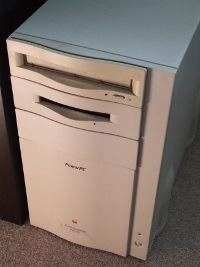
During our recent house move I found my old and dusty PowerMac 8500/180 while we were packing up the contents of my garage. It had been placed on the bottom shelf of my car spares shelving for a time when I could either make a VGA adapter cable or acquire another old Mac monitor to replace the one that died. That was back in 2004, and as time passed by storage crates piled up in front of it and it was soon forgotten.
A long time ago I was a NetWare specialist and I had a variety of non intel computers in my private lab that I used for working on interoperability projects. Many of my customers had a small number of Macintosh computers in their organisations and I acquired my 8500 second hand when one of them switched to Windows a year after purchase.
I can’t say that I was a Mac specialist in any sense. My interest was purely interoperability with NetWare, Unix and other corporate host based systems. I tinkered a lot with Applescript and had a lot of fun with my 8500. However, I didn’t like the fact that Apple built the machine to be supported only by their own engineers. There weren’t any manuals for DIY upgrades as you were supposed to take the 8500 to an Apple technician for things like RAM upgrades. I soon learned that Apple products were all about lock-in. I found this aspect of Mac ownership distasteful to the point that I probably wouldn’t buy another Mac again even though I liked my 8500.
So time moves on. It’s 2011 and the 8500 is sitting in my new garage. I don’t want to leave it there to deteriorate for another seven years so I dust it off and bring it into the house to see if it still works. I still don’t have a Mac to VGA adapter but the 8500 has TV output. I connect it to my 42″ LCD TV using an RCA composite TV cable (Yellow-Red-White). After plugging the onboard Ethernet into a live switch on my LAN, and completing the remaining connections for power, keyboard and mouse, the Mac powers up and the familiar chime is heard all over the house through the TV speakers.
I was really pleased that it still worked after all this time. I found some old QuickTime video clips of the kids when they were younger in a folder on the hard drive. I guess when the monitor died I didn’t have any way of accessing my files to save them back then. I set about copying off the files I wanted to keep by uploading to my file storage using Internet Explorer 5 that was still on the Mac and then I began depersonalising the machine ready for disposal. While I was dragging files to the Wastebasket, I started to think that maybe I could use this machine with Ubuntu or Debian as part of my CCTV system. After all, it had on-board analogue video capture that was too fast for any hard-drives produced at the time. Perhaps someone had developed the necessary drivers for V4L2. I didn’t stop too check first, I downloaded a copy of Debian 6.0.2.1 as I thought this would work with an OldWorld Mac and set about installing it.
Oh dear. It appears that a Mac monitor is necessary to install Linux as the TV display doesn’t work when Bootx is used to start the Debian installation. The next problem I have is that I don’t have any Mac OS installation media any more to resize the Apple partitions. A house flood in 2009 saw a lot of my stuff go in the rubbish skip never to be replaced. All my obsolete computer manuals, books and software were either destroyed or water damaged and I’m fairly certain that my Mac OS 8 install disks went in the same skip. I pack up for the day and think about how I can resolve this problem overnight.
The following morning I have an idea. Another old PC that was similarly shelved had a Matrox Mystique card inside. This had a Mac display port so I thought It may have originally been Mac compatible. I relieve the PC of the Matrox card and install it in the Mac with a USB 2.0 + FireWire PCI card. A 60GB portable hard drive is connected to the USB port and a flat panel LCD display to the Mystique’s VGA port before rebooting the Mac.
Mac OS 8.1 starts up and is displayed on the TV. I pop in the Debian CD-ROM and copy the installation kernel and ramdrive to the Linux Kernel folder in the Mac System Folder and configure Bootx to use them. Starting Debian from Bootx the TV display loses its signal and shows the default blue screen. The LCD monitor is now showing a familiar penguin and I can see that Linux is booting and in the hardware detection phase.
I manage to successfully create a Linux partition and swap partition on the USB hard drive but the installation always stalls at some point when unpacking an archive on the CD-ROM. Looking at the logs, the installation is almost there, but the live kernel has not been created in /boot and it’s not good enough to even try building it by hand. Disappointed, I abandon this project yet again to think about it overnight.
Next morning I have an idea. I downloaded the last Ubuntu distribution that officially supported the PowerPC architecture. The Alternate install image for Ubuntu 6.06 LTS PPC seemed most appropriate considering that my Mac has only 96MB of RAM. I replaced the Bootx kernel and ramdrive from this CD and recommenced installation.
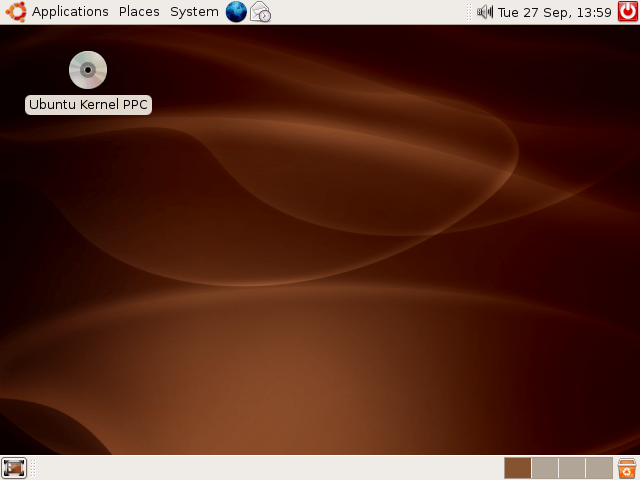
Success! The installation is plodding along well. I let it run on its own all day, coming back now and again to check progress and answer any waiting prompts. When it finished I rebooted and logged in to Ubuntu at 640×480 resolution. I started up the System Monitor and had a played a game of Solitaire before tweaking a few settings one by one.
Disaster strikes! Somewhere during the installation I failed to notice that the Mac didn’t have a network connection when running Linux. My Ethernet switch indicates that the on-board MACE (Mac Ethernet) is present at 10Mbps but it won’t DHCP or accept a static IP address. I try installing an Intel E100B PCI adapter and it’s the same. Booting back into Mac OS 8.1 there’s no network now. I just can’t get it to connect. I tried zapping the PRAM and NV but I couldn’t check the OpenFirmware on the serial port as I don’t have a Mac serial lead anymore.
Without a network connection, this 8500 is useless to me. So, the final enjoyment I got from my Mac was using Ubuntu 6.06 on it. I’m not sure if it was any quicker than Mac OS 8.1 as I only have 96MB of RAM installed but it was an interesting exercise on how to get Ubuntu running on a Mac without the Mac OS install discs.
Sadly, I don’t have a use for a Mac that cannot connect to my LAN. I can’t explain why the MACE shows a connection on my switch but refuses to load TCP/IP. Maybe the logic board got a static zap when I was plugging in PCI boards. Maybe I have pressed some key sequence that has deactivated the board in OpenFirmware without my knowledge. If I don’t find a way of getting the onboard Ethernet running again under Mac OS this Mac will be going to the recycling centre very soon.
I have been experimenting with Zoneminder recently, using the pre-built package for Ubuntu 11.04. I couldn’t get the package to work properly but found some very useful instructions in the Zoneminder Wiki that made it work.
When I finish the installation I will put this into an install script.
I have reconfigured my MythTV backend server to shutdown automatically when there are no recordings within the next couple of hours. It does this using ACPI and wakes up automatically using the NVRAM Alarm function built in to the computer’s motherboard. However, one annoying aspect that I found quite quickly afterwards was that my backend would shutdown while I was watching recordings on my PlayStation3 or WD TV Live.
I found that the MythTV event mechanism for detecting clients and playback only seems to work for MythTV frontends and not for UPnP AV clients like the PS3.
After thinking about the problem for a while, I realised that all I needed was a script that could detect my UPnP AV clients and tell MythTV not to shutdown just yet.
Fortunately, MythTV has the ability to specify such a script to be called. It only needs to return ‘1’ to the calling process to inhibit the reboot, or ‘0’ to let it go ahead.
UPnP AV clients connect to the backend using port 6544. The netstat program reports UPnP clients as ‘ESTABLISHED’ if they are in use. It also reports other states when a recording has ended but I don’t care if my backend powers down on an idle playback device so my preshutdown check script is really simple. It probably needs some modification if you use a MythTV Frontend. I only use MythWeb with UPnP clients so I can’t test a frontend with it.
#!/bin/bash

# Pre shutdown check command should return one of the following values

# 0 : Allows the backend to reboot

# 1 : Sends the backend around the idle timeout again

# 2 : Resets the Client Connected flag (not set in any case for UPNP clients)

# This script detects UPnP AV clients so the return value of 2 is never used.


netstat -tun | grep :6544 | grep -i established

if [ $? = "0" ] ; then

  # Grep found a match

  exit 1

else

  # Grep found nothing

  exit 0

fi


# End of file
The output of the grep’d netstat is recorded in /var/log/mythtv/backend.log so you can see a history of it working.
I found this really simple way of finding the installed BIOS version on an Ubuntu PC without having to reboot. Simply execute the following command in a terminal session and scroll through the output until you find the BIOS section.
sudo dmidecode -s bios-version
For more system information, just scroll through the output until you find what you need.
sudo dmidecode | more
Update August 2012
I have successfully installed Lubuntu 10.04 on an old Toshiba Tecra 8000 (Pentium Mobile 233 with 256MB of RAM) and found that this trick to find the BIOS version did not work. The BIOS in my old Tecra is older than 1999 and doesn’t have the Desktop Management Interface present.
Do you get two welcome messages when logging in to your Ubuntu 10.10 host? I have experienced it on hosts upgraded from 10.04 and on freshly built hosts from the downloaded CD-ROM images. The problem can be easily fixed using…
sudo rm /etc/motd.tail
If you are still using password based login for SSH, consider using key based logins instead. It is very easy to set up, convenient to use and secure. If you also use PuTTY on a Windows PC you can use Pageant as the automatic authentication agent.